Wireframe
A component system for building fixed/sticky navigation layouts with automatic content spacing.
Author: Diego Ramos
Ilustrations: Saul Pérez
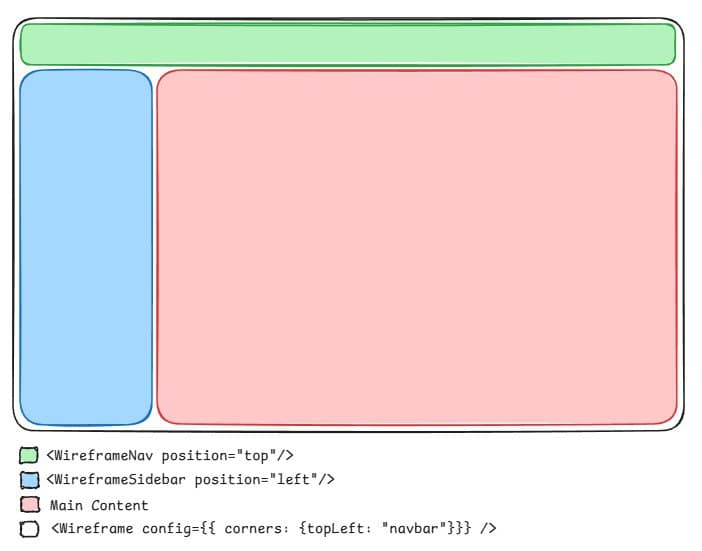 Define your navbar and sidebar dimensions once, and the content area adjusts automatically.
Playground Demo | Github Repository
What It Does
- Automatic spacing: Content automatically adjusts margins based on navbar/sidebar presence and dimensions
- Multiple navigation types: Fixed top/bottom navs, sticky navs, responsive navs, and collapsible sidebars
- Corner control: Define which element (navbar or sidebar) occupies each corner
- CSS variable-driven: Configure all dimensions and offsets through CSS variables
- Multiple instances: Use different configurations for different sections (e.g., blog vs. dashboard)
- PWA support: Automatic safe area handling for mobile devices with notches, rounded corners, and home indicators
Installation
1. Add the component file
Copy wireframe.tsx to your project: @/components/ui/wireframe.tsx
2. Configure TailwindCSS breakpoint
Add the responsive nav breakpoint to your CSS (controls when responsive nav switches from bottom to top):
@theme {
	--breakpoint-wf-nav: 40rem; /* 640px */
}
3. Wrap your app
// app/layout.tsx
import { Wireframe } from "@/components/ui/wireframe";

export default function RootLayout({
	children,
}: Readonly<{ children: React.ReactNode }>) {
	return (
		<html>
			<body>
				<Wireframe>{children}</Wireframe>
			</body>
		</html>
	);
}
4. Build your layout
// app/page.tsx
import { WireframeNav } from "@/components/ui/wireframe";
export default function Page() {
return (
<>
<WireframeNav position="top">
<div className="flex h-full items-center justify-between px-4">
<div>Logo</div>
<nav>Navigation</nav>
</div>
</WireframeNav>
<div className="p-4">
{/* Your content - margins adjust automatically */}
</div>
</>
);
}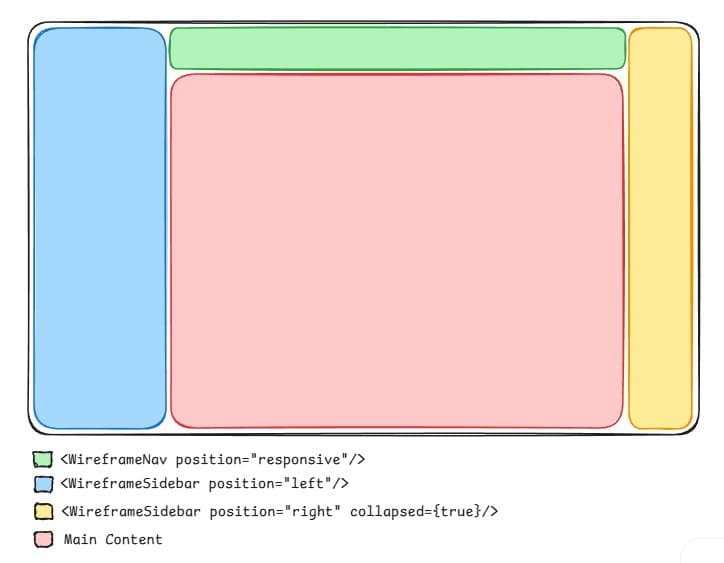 Example with top navbar left and right sidebars.
Configuration
All configuration is optional and uses sensible defaults. Configuration is passed via a single config prop.
Corner Behavior
Control which element occupies each corner when navbars and sidebars overlap. Default is "sidebar" for all corners.
<Wireframe
config={{
corners: {
topLeft: "sidebar",
topRight: "sidebar",
bottomLeft: "sidebar",
bottomRight: "sidebar",
responsive: {
left: "sidebar",
right: "sidebar",
},
},
}}
>
{children}
</Wireframe>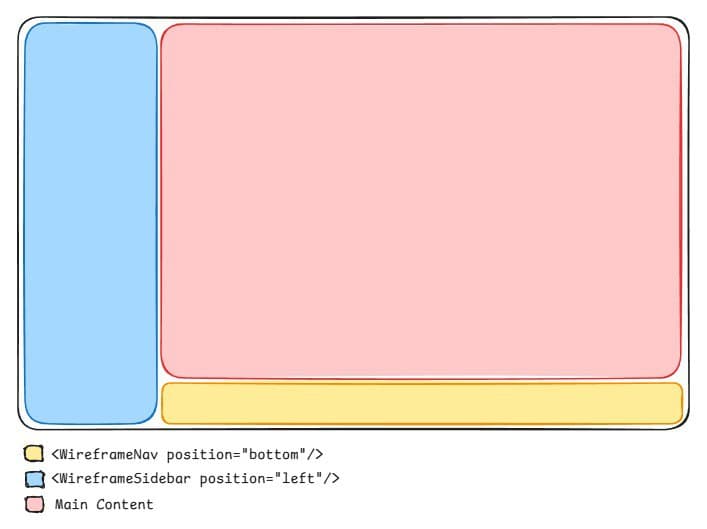 Sidebar corners take precedence over navbar corners.
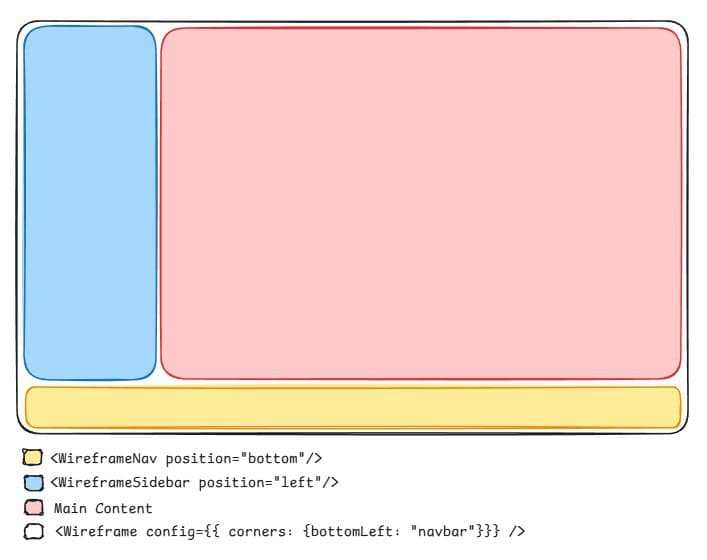 Navbar corners take precedence over sidebar corners.
Note: You can only configure both corners on each side (left/right) for responsive navs.
CSS Variables
Customize dimensions and spacing by passing config.cssVariables. All values shown are defaults:
<Wireframe
	config={{
		cssVariables: {
			// STICKY NAV
			"--sticky-nav-height": 12,
			"--sticky-nav-top-offset": 0,

			// TOP NAV
			"--top-nav-height": 16,
			"--top-nav-left-offset": 0,
			"--top-nav-right-offset": 0,
			"--top-nav-top-offset": 0,
			"--top-nav-bottom-offset": 0,

			// BOTTOM NAV
			"--bottom-nav-height": 8,
			"--bottom-nav-left-offset": 0,
			"--bottom-nav-right-offset": 0,
			"--bottom-nav-top-offset": 0,
			"--bottom-nav-bottom-offset": 0,

			// LEFT SIDEBAR
			"--left-sidebar-width-collapsed": 16,
			"--left-sidebar-width-expanded": 52,
			"--left-sidebar-left-offset": 0,
			"--left-sidebar-right-offset": 0,
			"--left-sidebar-top-offset": 0,
			"--left-sidebar-bottom-offset": 0,

			// RIGHT SIDEBAR
			"--right-sidebar-width-expanded": 52,
			"--right-sidebar-width-collapsed": 16,
			"--right-sidebar-left-offset": 0,
			"--right-sidebar-right-offset": 0,
			"--right-sidebar-top-offset": 0,
			"--right-sidebar-bottom-offset": 0,
		},
	}}
>
	{children}
</Wireframe>
Note: Numeric values are multiplied by tailwindcss --spacing variable (default 0.25rem). If you need any other unit, use a string value (e.g., "64px", "10rem").
Component Reference
<Wireframe>
Root component that provides context. Wrap your app at the layout level.
Props:
config?- Configuration object with the following optional properties:safeAreas?- Enable PWA safe area insets (default:false)corners?- Control corner behavior for fixed and responsive navs{ topLeft?: "navbar" | "sidebar"; // default: "sidebar" topRight?: "navbar" | "sidebar"; // default: "sidebar" bottomLeft?: "navbar" | "sidebar"; // default: "sidebar" bottomRight?: "navbar" | "sidebar"; // default: "sidebar" responsive?: { left?: "navbar" | "sidebar"; // default: "sidebar" right?: "navbar" | "sidebar"; // default: "sidebar" }; }cssVariables?- Override default dimensions and spacingPartial<Record<WireframeCSSVariables, string | number>>
<WireframeNav>
Navbar component that can be fixed or responsive.
Props:
position:"top"|"bottom"|"responsive"(default:"top")"top": Fixed navbar at the top"bottom": Fixed navbar at the bottom"responsive": Positions at bottom on mobile and top on desktop (breakpoint-based)
<WireframeStickyNav>
Sticky navbar that scrolls with content until reaching the top.
<WireframeSidebar>
Sidebar with collapsed/expanded states.
Props:
position:"left"|"right"(default:"left")collapsed:boolean(default:false)
Advanced Usage
Multiple Wireframe Instances
Create separate wireframe configurations for different sections of your app (e.g., blog vs. dashboard):
Note: When using multiple wireframes, do NOT add a
<Wireframe>at the root layout because it will conflict with section-specific wireframes.
Example: Blog Layout
// components/wireframe/blog-wireframe.tsx
import { Wireframe } from "@/components/ui/wireframe";

export function BlogWireframe({ children }: { children: React.ReactNode }) {
	return (
		<Wireframe
			config={{
				cssVariables: {
					// STICKY NAV
					"--sticky-nav-height": 12,

					// LEFT SIDEBAR
					"--left-sidebar-width-collapsed": 16,
					"--left-sidebar-width-expanded": 52,
				},
			}}
		>
			{children}
		</Wireframe>
	);
}
// app/(blog)/layout.tsx
import { BlogWireframe } from "@/components/wireframe/blog-wireframe";
export default function BlogLayout({ children }: { children: React.ReactNode }) {
return <BlogWireframe>{children}</BlogWireframe>;
}Example: Dashboard Layout
// components/wireframe/dashboard-wireframe.tsx
import { Wireframe } from "@/components/ui/wireframe";

export function DashboardWireframe({ children }: { children: React.ReactNode }) {
	return (
		<Wireframe
			config={{
				cssVariables: {
					// TOP NAV
					"--top-nav-height": 16,

					// BOTTOM NAV
					"--bottom-nav-height": 8,

					// LEFT SIDEBAR
					"--left-sidebar-width-collapsed": 16,
					"--left-sidebar-width-expanded": 52,
				},
			}}
		>
			{children}
		</Wireframe>
	);
}
// app/(dashboard)/layout.tsx
import { DashboardWireframe } from "@/components/wireframe/dashboard-wireframe";
export default function DashboardLayout({ children }: { children: React.ReactNode }) {
return <DashboardWireframe>{children}</DashboardWireframe>;
}Nested Wireframes
<Wireframe>s must not be nested because navbars and sidebars are positioned using position: fixed and position: sticky, which are relative to the viewport, not the parent element. Thus, there must only be one <Wireframe> per page.
PWA Support
The wireframe component includes comprehensive support for Progressive Web Apps (PWAs) with automatic handling of device safe areas.
What are Safe Areas?
Safe areas are the regions of the screen that are guaranteed to be visible on all devices, accounting for:
- Notches and camera cutouts (e.g., iPhone X and newer)
- Rounded corners on modern smartphones
- Home indicators (the bottom bar on gesture-based navigation)
- System UI elements that may overlap your content
Without safe area handling, your fixed navigation bars and sidebars could be partially obscured by these hardware features.
How It Works
The wireframe component uses CSS env(safe-area-inset-*) variables to automatically add padding around your layout:
- Automatic spacing adjustments: All navbars and sidebars automatically include safe area insets in their positioning calculations
- Optional colored overlays: Enable
safeAreasto add matching background overlays that fill the unsafe areas
Safe Area Insets
All layout calculations automatically include safe area insets:
// Navbars and sidebars automatically account for safe areas
// For example, a top navbar is positioned at:
top: calc(var(--top-nav-top-offset) + env(safe-area-inset-top))

// Bottom navbar:
bottom: calc(var(--bottom-nav-bottom-offset) + env(safe-area-inset-bottom))

// Left sidebar:
left: calc(var(--left-sidebar-left-offset) + env(safe-area-inset-left))

// Right sidebar:
right: calc(var(--right-sidebar-right-offset) + env(safe-area-inset-right))
This ensures your navigation elements are never obscured by device hardware.
Enabling Safe Area Overlays
For a seamless edge-to-edge experience, enable safe area overlays that fill the unsafe regions with your background color:
<Wireframe
	config={{
		safeAreas: true,
	}}
>
	{children}
</Wireframe>
This adds four fixed-position overlays (top, bottom, left, right) that:
- Match your app's background color (uses
bg-background) - Are
pointer-events-noneso they don't interfere with touch/click events - Have the highest z-index (
z-99999) to ensure they're always on top - Fill only the unsafe areas using
env(safe-area-inset-*)
PWA Meta Configuration
To enable safe area support in your PWA, add the following to your <head>:
// app/layout.tsx
export default function RootLayout({ children }) {
	return (
		<html>
			<head>
				<meta
					name="viewport"
					content="width=device-width, initial-scale=1, viewport-fit=cover"
				/>
			</head>
			<body>
				<Wireframe config={{ safeAreas: true }}>
					{children}
				</Wireframe>
			</body>
		</html>
	);
}
The viewport-fit=cover directive is critical—it tells the browser to extend your content into the safe areas, allowing the wireframe component to handle them properly.
When to Use Safe Areas
Enable safe areas (safeAreas: true) when:
- Building a PWA or mobile-first app
- Using edge-to-edge design with colored backgrounds
- Your navbars/sidebars have distinct background colors
- Targeting devices with notches or rounded corners
You can skip safe areas when:
- Building desktop-only applications
- Using transparent navigation elements
- Your app already has sufficient padding/margins
Manual Safe Area Components
If you need more control, the wireframe also exports individual safe area components:
import {
	SafeAreaInsetTop,
	SafeAreaInsetBottom,
	SafeAreaInsetLeft,
	SafeAreaInsetRight
} from "@/components/ui/wireframe";

// Use them individually
<SafeAreaInsetTop className="bg-blue-500" />
These components can be used outside the <Wireframe> context for custom layouts.
Caveats
Full-Height Content
Setting height: 100% won't work on child content. The <Wireframe> root is position: relative, use absolute inset-0 to fill the viewport, instead of h-full:
<Wireframe>
  <WireframeNav position="top">
    <div>Navigation</div>
  </WireframeNav>

	{ /* WILL NOT WORK */ }
	{ /* <div className="h-full"> */ }

  {/* Content that fills the entire viewport */}
  <div className="absolute inset-0">
		{/* Your content here */}
  </div>
</Wireframe>
Use cases: Vertically centered layouts.
Note: You'll need to handle overflow and scrolling manually when using absolute inset-0.